
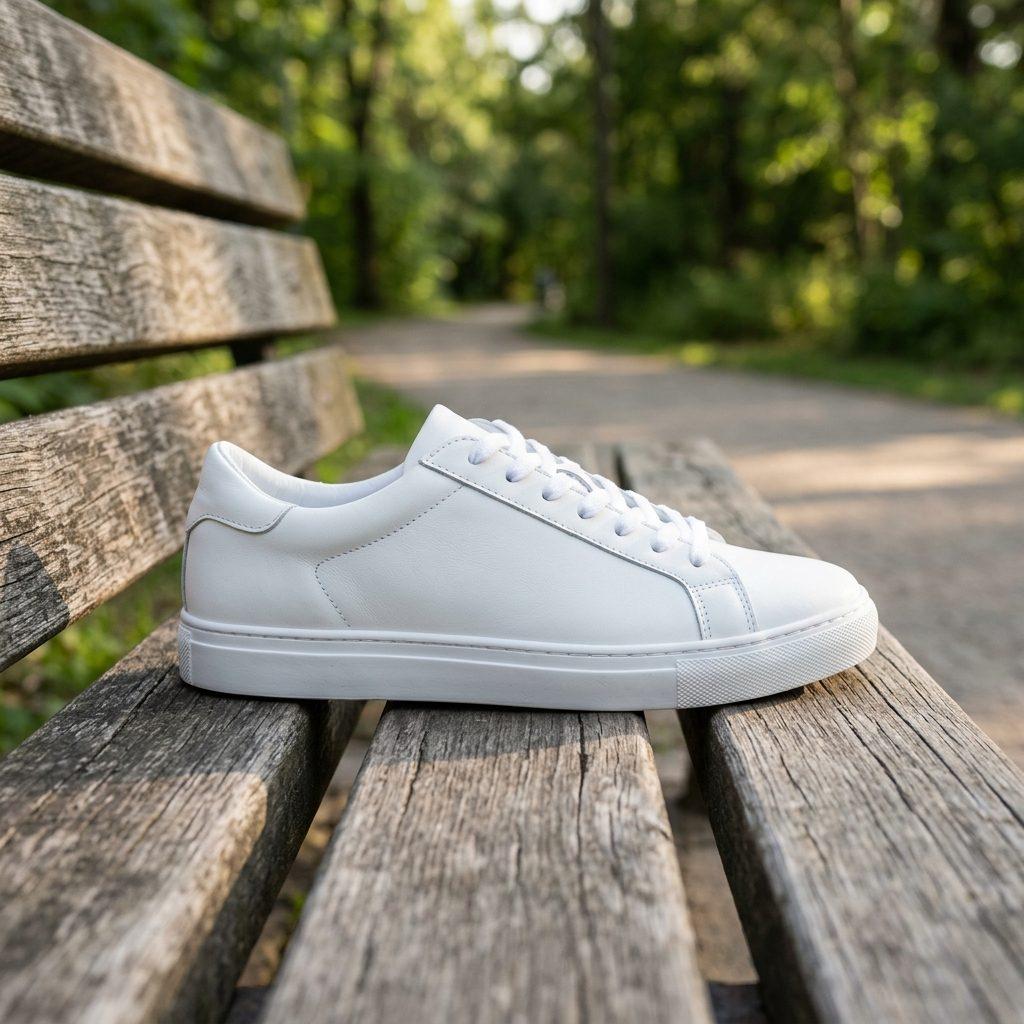
 Before
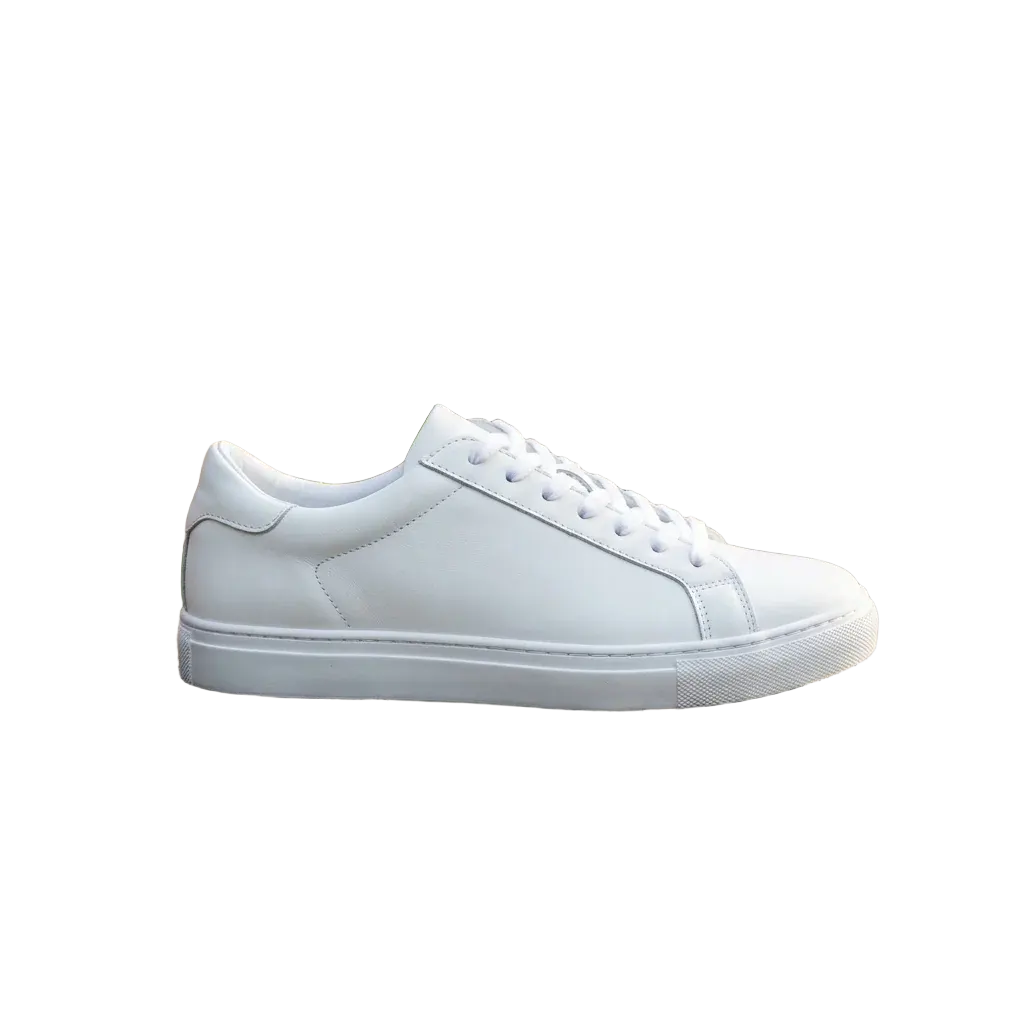 After
AfterProduct on a park bench
A clean sneaker cutout, ready to drop onto a white marketplace background.
Upload a photo and get a clean cutout with a transparent background in one click. Your first 12 images are free — no credit card needed. Works on phone and desktop.
Drop your photo here
or click to browse
PNG · JPEG · WebP · up to 5 MB
Each cutout below came straight out of the tool on this page, with no manual touch-ups. The example photos were generated with Visiojoy; the checkerboard shows the transparent areas.
BeforeAfterA clean sneaker cutout, ready to drop onto a white marketplace background.
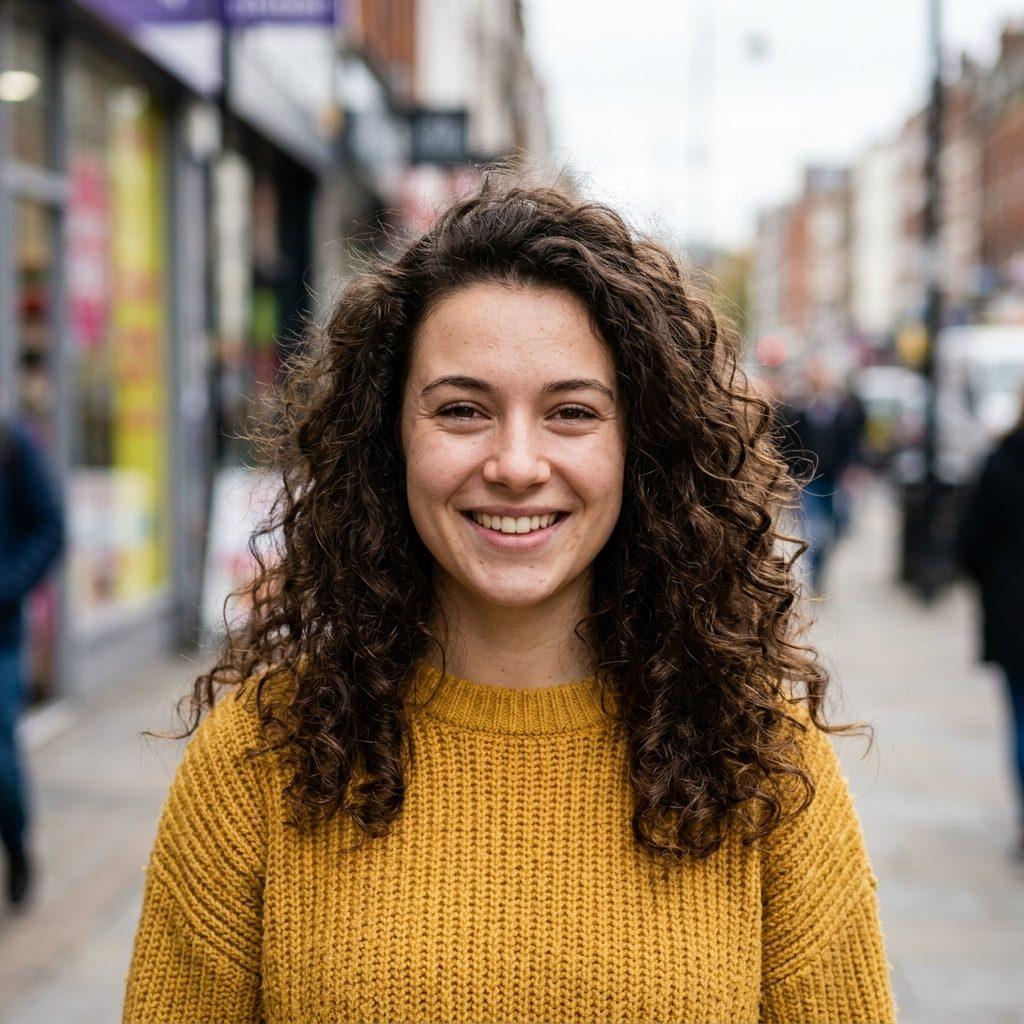 Before
 After
AfterCurls and loose strands kept intact against a busy street background.
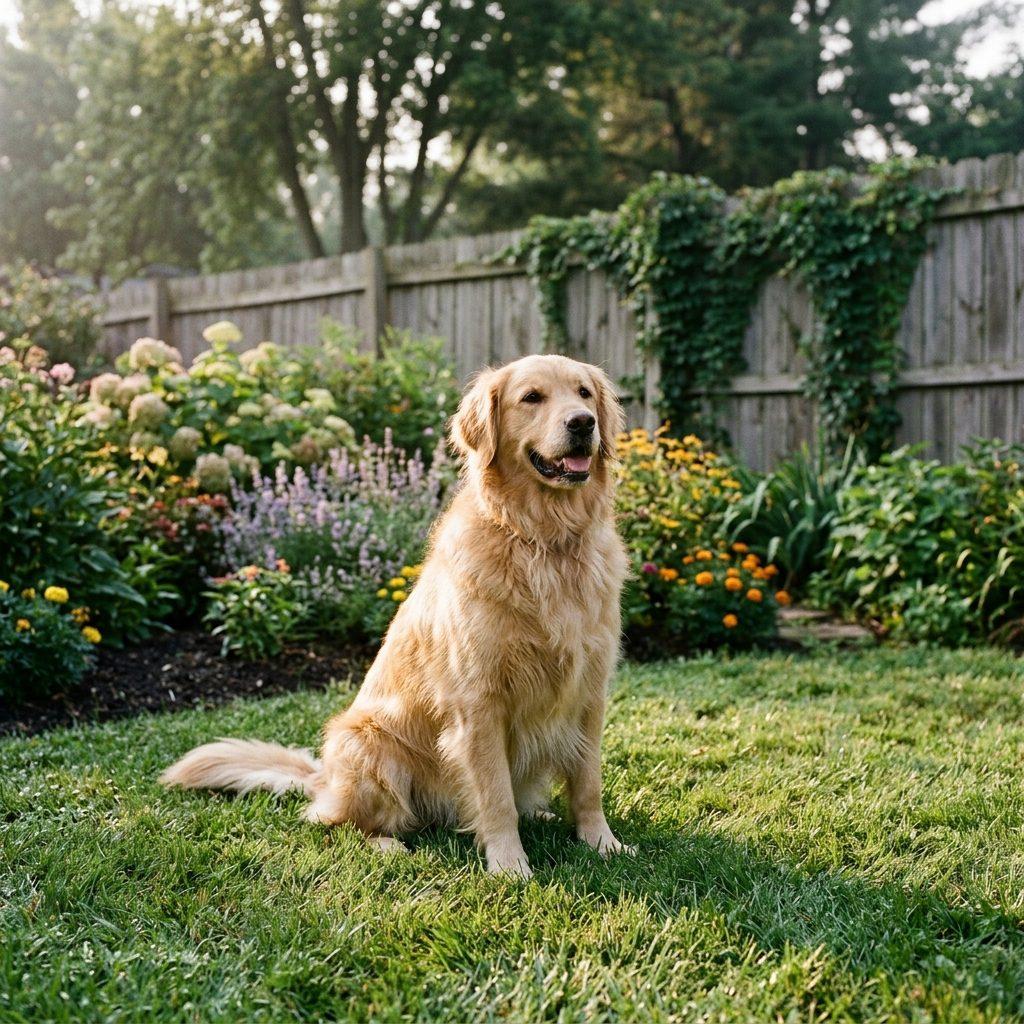 Before
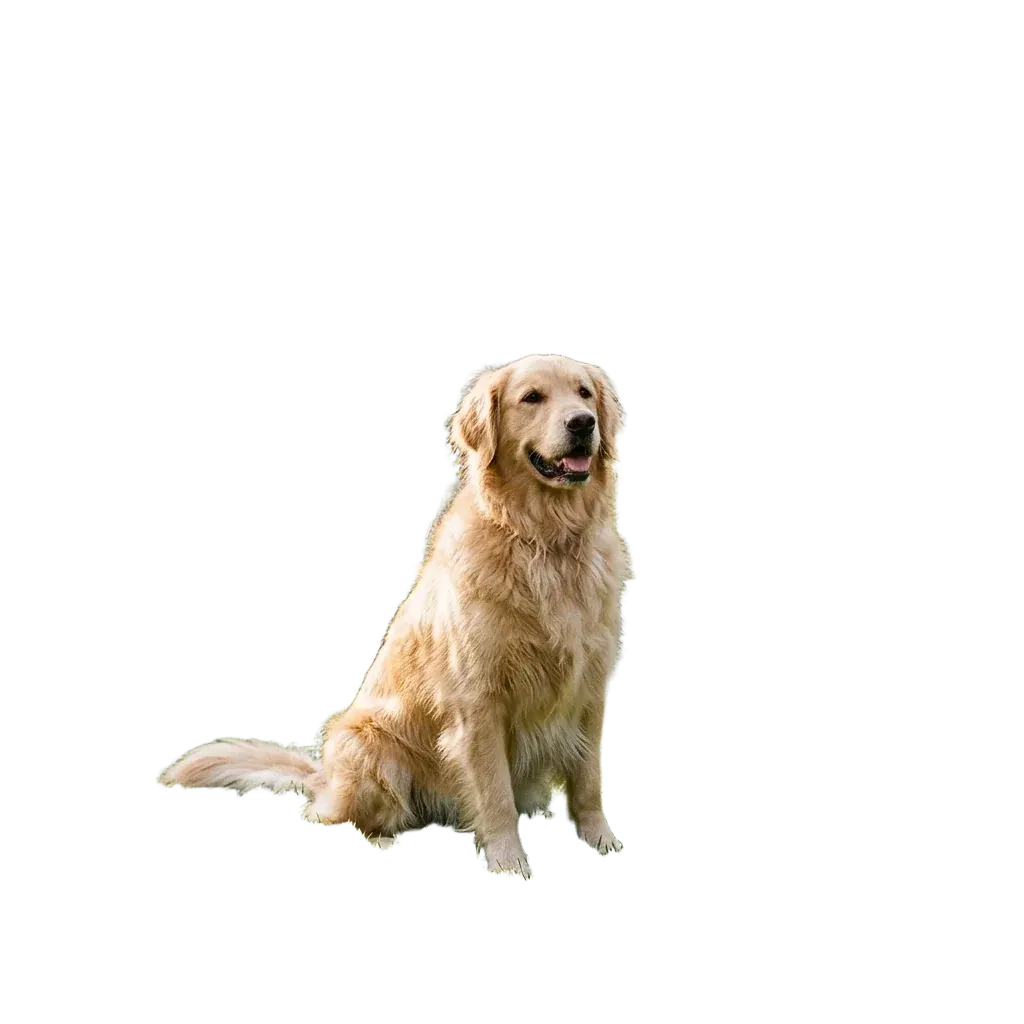 After
AfterSoft fur edges separated from grass and flower beds.
 Before
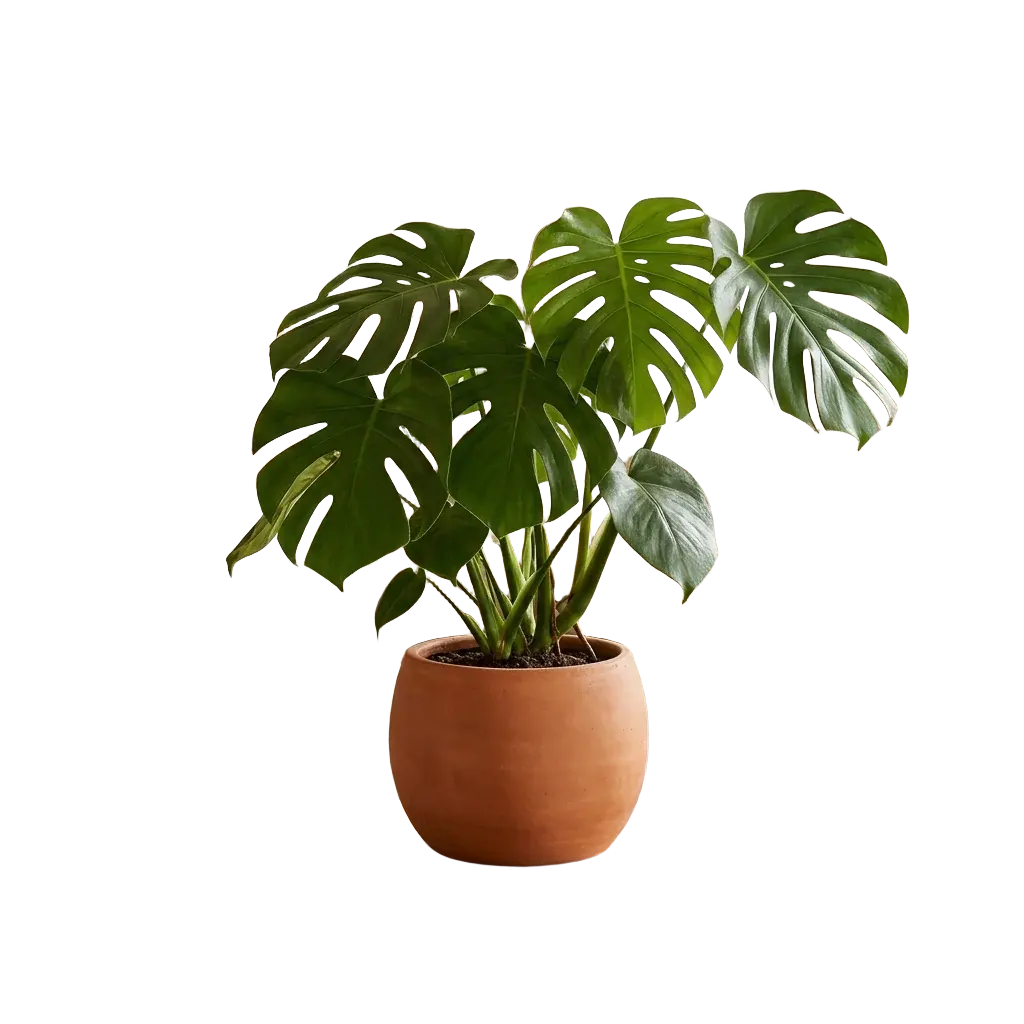 After
AfterLarge leaves, the gaps between them and the pot cut out of a cluttered room.
Four steps, all on this page — nothing to install and no editing skills needed.
STEP 01
Drop a JPG, PNG or WebP file into the tool above, or click to browse. Files up to 5 MB are supported.
STEP 02
The AI finds the main subject and cuts it out — no brushes, selections or prompts. A quick Google sign-in is needed the first time.
STEP 03
Drag the slider to compare the original with the cutout. The checkerboard shows which areas are now transparent.
STEP 04
Save the cutout and drop it onto any background, slide or design. Try another photo whenever you like.
Clean cutouts without the masking work of desktop photo editors.
New accounts get 12 free credits and each image costs 1 credit, so your first 12 cutouts are free. No credit card needed; free results may carry a small watermark until your first purchase.
The background is removed, not painted white. The result keeps transparency so you can place the subject on any color, photo or layout.
No lasso, no masking brushes, no prompt to write. Upload the image and the AI detects the subject on its own.
Compare the cutout with the original right on the page, over a checkerboard, before you download anything.
Nothing to install. Works on desktop and mobile in any modern browser.
The tool runs Recraft's dedicated background removal model, built for cutting subjects out cleanly rather than generating new images.
The same one-click cutout covers the most common jobs.
Cut products out of everyday shots for Amazon, Shopify, Etsy or eBay listings, then place them on the clean white or brand-colored background each marketplace expects.
Remove a messy room or office behind you, then put your portrait on a solid color or soft gradient for LinkedIn, team pages and resumes.
Turn photos and illustrations into transparent stickers for chat apps, print-on-demand shirts or social posts, without hand-tracing the outline.
Cut out a person or product to layer over text in YouTube thumbnails, presentation slides and ad creatives.
Clear contrast between the subject and the background gives the cleanest edges. A dark product on a dark table is harder than the same product on a light one.
Cropped-off limbs or products cut by the frame edge stay cut off. Use the full photo instead of a tight crop.
Flyaway hair, fur and see-through objects like glasses or bottles are the hardest areas for any background remover. Zoom in with the slider and check them before using the cutout.
Blur makes edges ambiguous. If your photo is soft, run it through Unblur Image first, then remove the background.
Keep working on your image from the same account.
Put your cutout on a new background, change lighting or edit details with a text prompt.
Sharpen a soft or blurry photo before or after removing its background.
Generate new product scenes or backgrounds with Nano Banana, GPT Image, Seedream and more.
Remove backgrounds from a batch of images by asking Claude, Cursor or another AI assistant.
Upload your photo to the tool at the top of this page and click Remove Background. The AI detects the main subject, removes everything behind it and returns a transparent PNG you can download. There's no selection or prompt to set up.
Yes, to start. New accounts get 12 free credits and each image costs 1 credit, so you can remove the background from 12 images for free. After that, a credit pack from $9.90 covers about 640 images.
A PNG with a transparent background, so you can place the subject on any color, photo or layout. If you need a solid background instead, add it in your design tool or use the AI Image Editor.
Until your first purchase, results may include a small visiojoy.com watermark in the corner. After any subscription or credit pack purchase, new results are watermark-free and licensed for commercial use.
JPG, PNG and WebP images up to 5 MB, one image at a time.
Not on this page — it handles one image per run. For batches, the Visiojoy MCP server lets an AI assistant such as Claude or Cursor run background removal on a list of images for you, using the same credits.
It handles most portraits, pets and products well. Fine flyaway hair, fur and see-through objects like glass are the hardest cases for any background remover, so check those edges with the before/after slider before you use the cutout.
This tool removes the background and leaves it transparent. For a pure white background — the standard for Amazon and most marketplaces — place the PNG on a white canvas in any design app, or upload the original to the AI Image Editor and ask for a white studio background. The editor can also put the subject on a new scene, like a beach or a kitchen counter.
Not by default. Results appear in Visiojoy's public gallery, together with the photo you uploaded. Subscribers can switch off Public Visibility before processing to keep the result private, or turn on Copy Protection to hide the original photo. Avoid uploading images you don't want shared unless you've changed these settings.
Yes. The tool runs in mobile browsers on iPhone and Android — tap the upload area to pick a photo from your camera roll, then download the transparent PNG to your phone. No app to install.
You can pick a photo without signing in. When you click Remove Background, a quick Google sign-in attaches the result and your free credits to your account.
It uses Recraft's background removal model. Visiojoy is an independent platform and is not affiliated with Recraft; it offers the model alongside other image tools in one account.
Yes, once you've made a purchase. Images created after your first purchase (any subscription or credit pack) can be used commercially; images created before that are for personal, non-commercial use. Make sure you also have the rights to the original photo.